Managing Images in Fazcon Cloud Storage
Learn how to upload, organise, and share your images in the Fazcon Cloud Storage app.
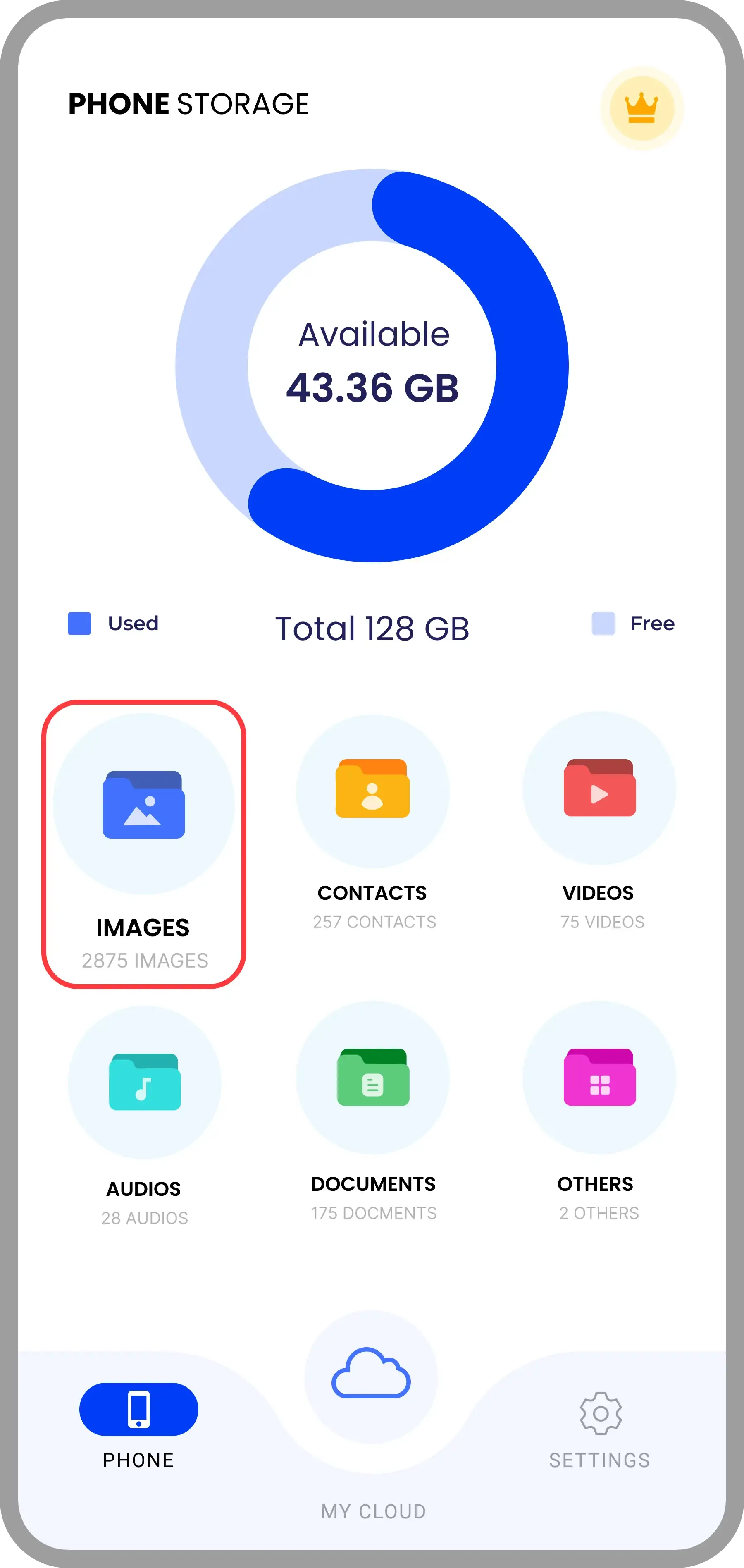
📤 Uploading Images
- Open the Fazcon Cloud Storage app on your device.
- Navigate to the Images section.
- Select one or more images from your gallery that you'd like to upload.
- Tap the “Backup” button to begin the upload process.
- You will be taken to an Upload Progress screen showing the real-time status of each image being uploaded.
- Wait until all selected images have finished uploading — a confirmation message will appear when complete.
- Tap “OK” to return to the image selection screen, where you can choose and upload more images if needed.
Upload UI
Upload UI
☁️ Restoring Your Images from Cloud
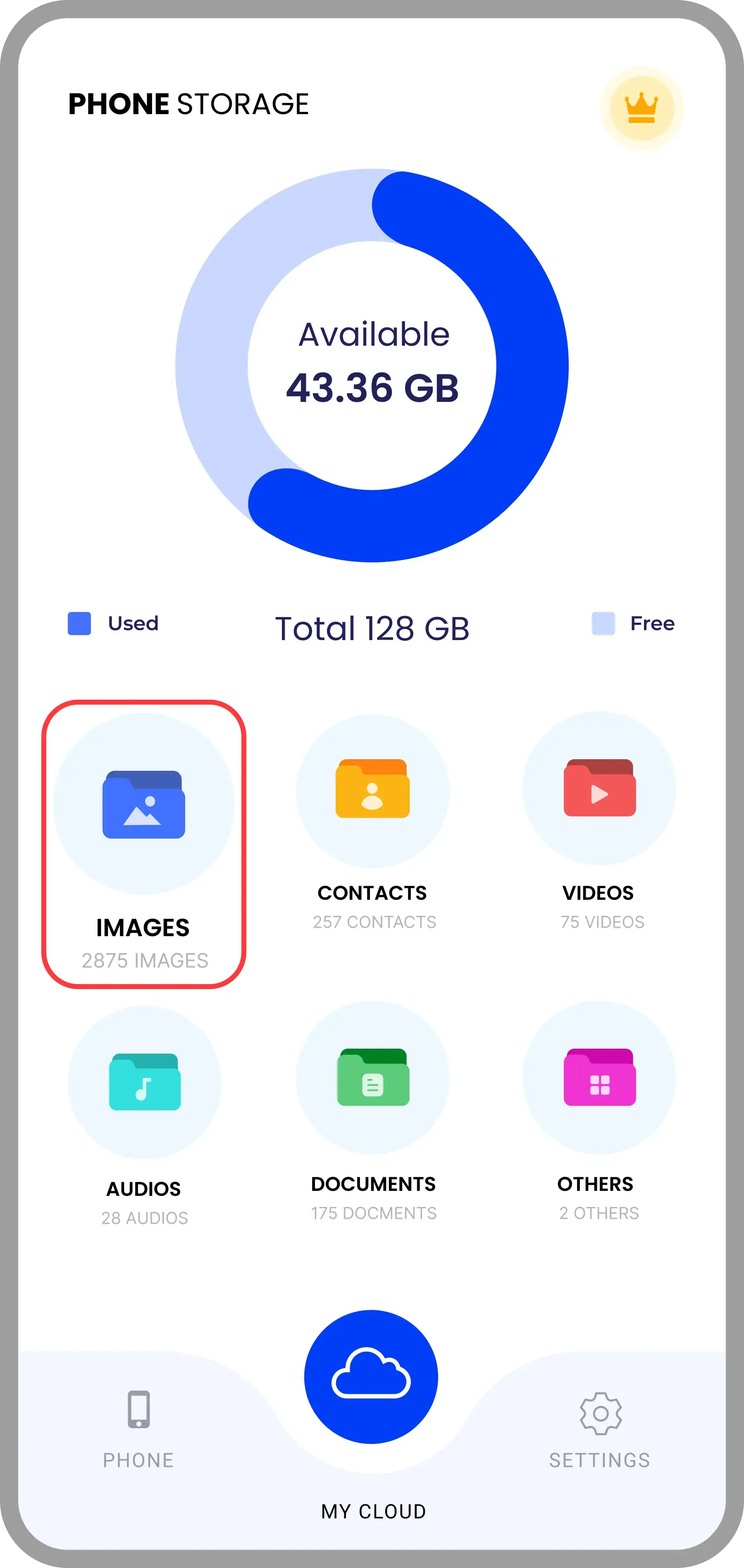
- Open the Fazcon Cloud Storage app on your device.
- Tap the My Cloud button at the bottom navigation bar (with a cloud icon).
- Navigate to the Images category to view your backed-up images.
- Select one or multiple images to restore.
- Tap the Restore button — restored images will be removed from your Fazcon Cloud Storage and saved locally.
- After restoration, tap OK to return to the gallery.
🖼️ Viewing Your Images
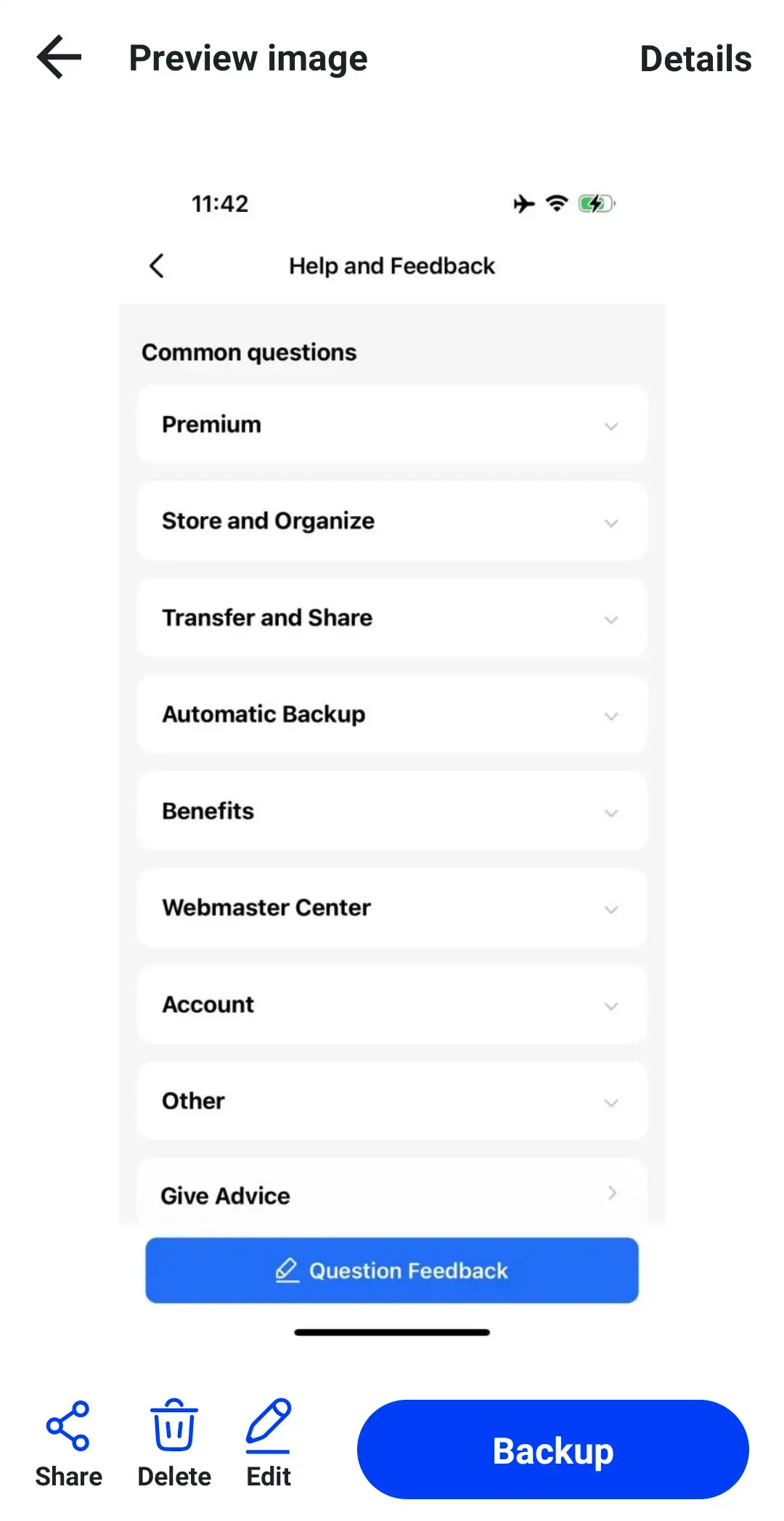
- Tap any image to open it in full-screen preview.
- Swipe left/right to navigate between images.
- Zoom in/out using pinch gestures.
- Tap the options menu to edit or share.
🖼️ Viewing Your Images
- Open the Fazcon Cloud Storage app on your device.
- Navigate to the Images section from the main dashboard.
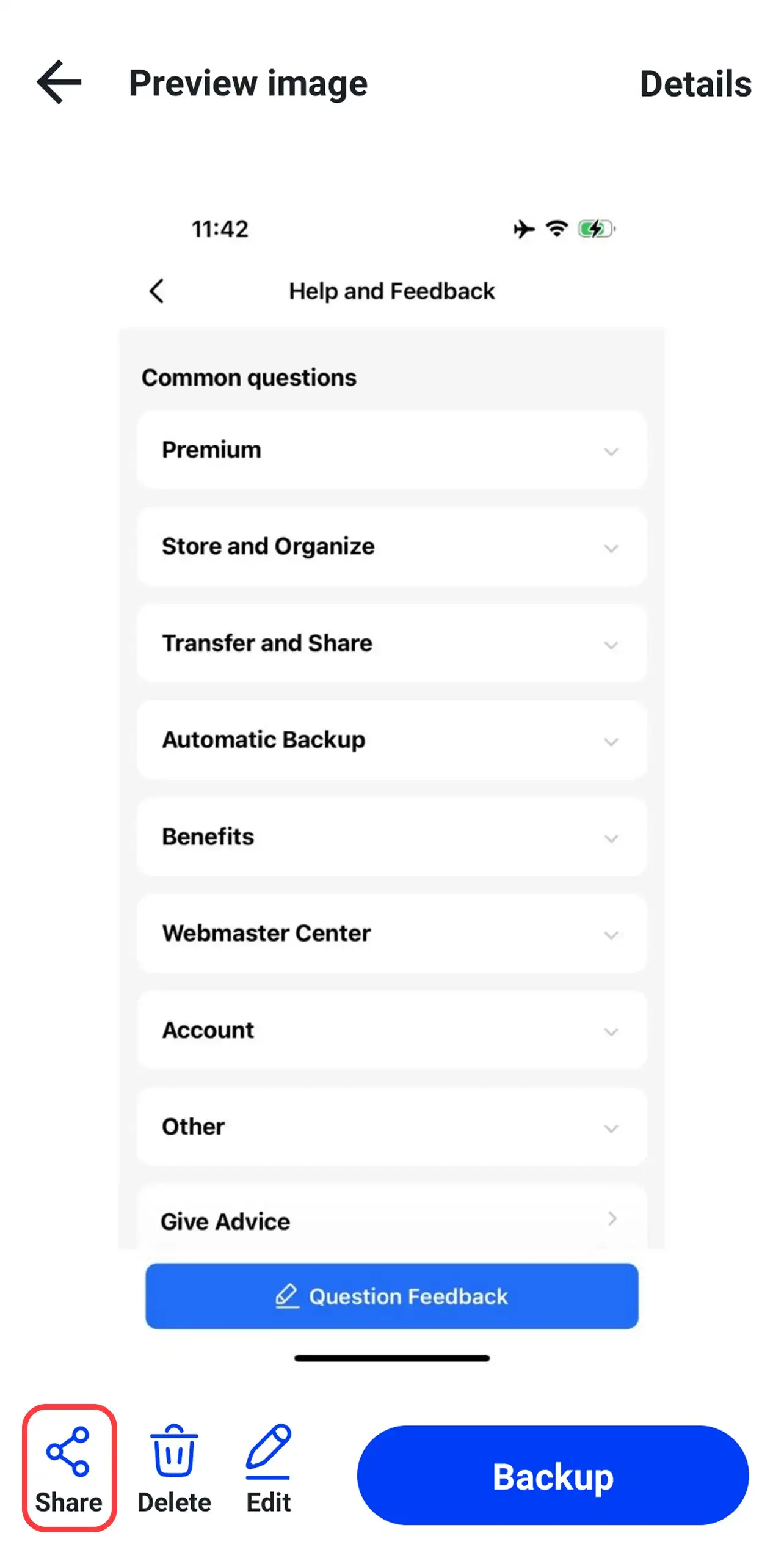
- Tap on the image you wish to share — this will open it in full-screen preview mode.
- In the preview screen, tap on the Share icon located at the bottom toolbar.
- The app will open a sharing panel with options like:
- Share via Email — send directly to selected contacts.
- Share via Apps — WhatsApp, Telegram, Messenger, etc.
🖌️ Editing Your Images
- Navigate to the Images section in the Fazcon Cloud Storage app.
- The app will display all images available in your gallery view.
- Tap on any image you wish to edit.
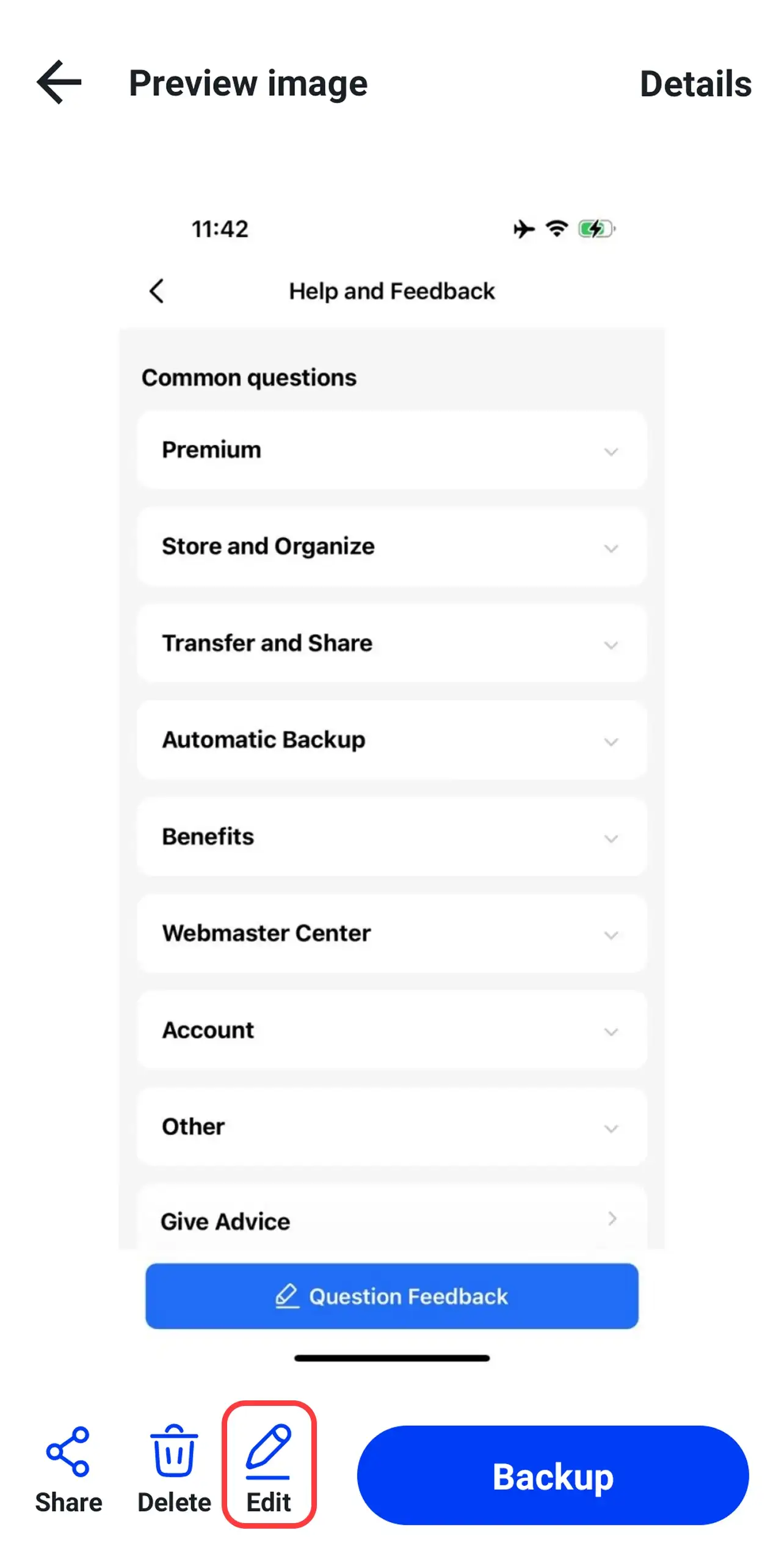
- The image will open in full-screen preview mode.
- At the bottom of the screen, tap the Edit option.
- This will open the image editing screen with a set of powerful tools at the bottom.
- You can use options like:
- Flip – mirror the image horizontally or vertically.
- Resize – change the image dimensions manually or by ratio.
- Move – reposition the image within the frame.
- Crop – trim the image to your desired area.
- Rotate – spin the image clockwise or counter-clockwise.
- Filter – apply aesthetic filters for styling.
- Adjust – fine-tune brightness, contrast, and more.
- Once you’re done editing, tap Save to apply changes to the image.
🖼️ Viewing Your Images
If you need assistance with the compression tool or your subscription, tap the Support tab in the app or contact us through our Support page.